iPhone stuck in SOS mode? Here’s how to fix it and restore cellular service

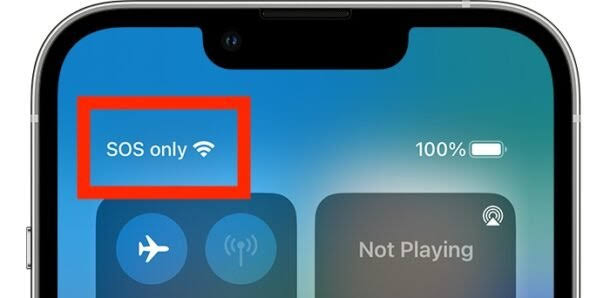
It is a situation many phone users know well. You are traveling through a new area, you take out your phone, and suddenly you see the dreaded SOS or SOS Only symbol at the top of your screen.
For many people, seeing SOS on their phone can be worrying, especially in today’s world where people depend heavily on their phones to stay connected.
However, seeing the SOS symbol does not always mean that your phone is completely useless.
When an iPhone shows SOS or SOS Only, it may still be able to connect to emergency services through other available cellular networks.
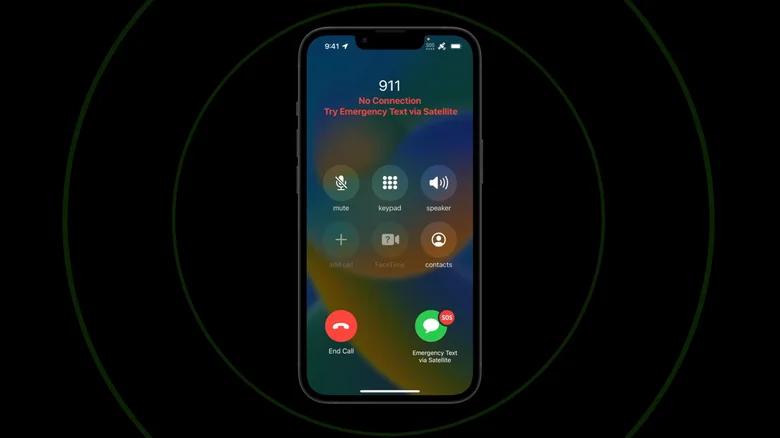
For people using an iPhone 14 or a newer model, there is also another option. These users can make emergency calls and send emergency messages through Apple’s satellite network in supported countries.
What Does the SOS Symbol Mean?
The SOS symbol usually means that your phone cannot connect to your normal cellular network.
However, your phone may still be able to use another available network to contact emergency services.
This can be especially important for people who travel to places where mobile phone coverage is limited.
Apple’s satellite emergency features are also designed to help people who are far away from normal cellular networks.
Apple currently says that its satellite services are available in 18 countries around the world. These include Australia, Austria, Belgium, Canada, France, Germany, Ireland, Italy, Japan, Luxembourg, Mexico, the Netherlands, New Zealand, Portugal, Spain, Switzerland, the UK and the US.
Through available cellular and satellite connections, iPhone users can also share their location with family and friends, send their Medical ID to emergency workers, request roadside assistance and tell loved ones when they are facing an emergency.
SOS Is Different From No Service
It is important to understand the difference between SOS and other network messages on an iPhone.
If your phone shows SOS or SOS Only, you may still be able to contact emergency services using another available cellular network.
However, if your phone shows No Service or Searching at the top of the screen, it means that your device is not connected to any cellular network.
In this situation, you will not be able to make normal phone calls or send regular text messages.
This is why it is important to understand what the different symbols mean before traveling to areas where mobile coverage may be limited.
Prepare Before Going Off the Grid
If you are planning to travel to a remote area where there may be little or no cellular service, it is a good idea to prepare your iPhone before you leave.
Apple provides a guide explaining how to use its Emergency SOS satellite services.
The guide can help users understand how to connect their phones to Apple’s satellite network when they need help.
It also explains steps users can take before traveling to improve their experience with the satellite service.
Apple also provides a Connection Assistant that allows users to test their phone’s SOS connection.
Testing the feature before traveling can help users understand how it works. This could be especially useful if you plan to visit remote areas where regular cellular service may not be available.
How to Fix an iPhone Stuck in SOS Mode
But what if your iPhone is showing SOS even though you are not in a remote area?
The good news is that there are several things you can try to restore your normal cellular connection.
Apple’s support page provides several possible solutions.
The first step is to try reconnecting your phone to your available cellular network.
One simple method is to turn on Airplane Mode.
Apple recommends turning Airplane Mode on for at least 15 seconds. After waiting, turn Airplane Mode off again and check whether your phone reconnects to the cellular network.
If this does not solve the problem, you can try restarting your iPhone.
Turning the phone off and then switching it back on is one of the oldest and simplest ways to fix temporary problems with electronic devices.
Check for Software Updates
If your iPhone remains stuck in SOS mode, the problem could be related to the software on your device.
Apple recommends checking whether your iPhone or iPad needs a software update.
To check for an update, open the Settings app on your device.
Next, select General and then look for Software Update.
If a new version of iOS is available, you can install it from there.
Keeping your iPhone updated can help prevent some software problems.
You can also turn on Automatic Updates in the same section. This allows your phone to install future software updates automatically when they become available.
Check Your SIM Card or eSIM
Problems with your SIM card could also cause your iPhone to show SOS.
This is especially important for people who use an iPhone with more than one SIM card or eSIM.
To check your cellular lines, open the Settings app and select Cellular.
You should see a list of the SIM cards and eSIMs connected to your phone.
Select the cellular line you want to use.
If the line is switched off, you may see an option that says Turn On This Line. Select it to activate the line.
If you are using a physical SIM card, you can also try removing it from your iPhone and putting it back in.
After doing this, check whether your phone has returned to its normal cellular connection.
Check Your Carrier Settings
If your iPhone is still showing SOS, you may also need to check your carrier settings.
Your mobile carrier may have released an update that your phone needs to install.
You can manually check for available carrier settings updates by going to the General section in your iPhone’s Settings app.
If your carrier settings are already updated, the problem could be related to your mobile network provider.
In that situation, you may need to contact your carrier directly for help.
This can be difficult if your phone can only make emergency calls, but you can try using a Wi-Fi connection to contact your carrier or access its support services.
Apple also recommends checking whether you are within your carrier’s service area.
You should also confirm that your carrier has not blocked your device from receiving cellular service.
Finally, check that your account “is active and in good standing.”
These checks can help determine whether the problem is with your phone or with your mobile network provider.
Use Apple’s Support App
If your phone continues to have problems, you may want to run a diagnostic test.
For users running iOS 18 or later, Apple allows them to perform diagnostics through the Apple Support application.
The app is available through the App Store and can help users find and troubleshoot problems with their devices.
Running a diagnostic check could help identify a problem that is not easy to find through the normal phone settings.
SOS Mode While Traveling Abroad
There are also situations where your iPhone may show SOS because you are traveling internationally.
This is a common problem for people who travel between different countries.
One possible reason is that Data Roaming is turned off.
Data Roaming allows your phone to use another mobile carrier’s network when you are outside the coverage area of your normal carrier.
This usually works through agreements between your mobile carrier and other network providers in the country you are visiting.
To turn on Data Roaming, open the Settings app and go to the Cellular section.
From there, select the cellular data network you want to use and then choose Cellular Data Options.
You should find an option to turn Data Roaming on.
However, you should be careful when using this feature because it could lead to additional charges.
Before traveling abroad, it is always a good idea to check your mobile plan and find out what international services are included.
Using an International eSIM
If you are using an international eSIM while traveling, you may also need to check your dual SIM settings.
To make sure your travel eSIM works correctly, you may need to turn off your regular carrier line or use the data switching option.
Data switching allows your iPhone to use mobile data from both plans to help you get better coverage.
However, this feature can also lead to additional charges when you are abroad.
If you are comfortable with the possible extra costs, you can turn on Allow Cellular Data Switching in your cellular data settings.
This can help your phone switch between available data plans and give you access to a wider range of cellular coverage.
SOS Does Not Always Mean Your Phone Is Broken
Seeing SOS on your iPhone can be worrying, but it does not always mean that your phone is broken.
In some cases, it simply means that your device cannot connect to your normal mobile network.
You may still be able to contact emergency services through another available network, and supported iPhone models can use Apple’s satellite emergency services in certain countries.
If you are at home or in an area that normally has good cellular coverage, you can try several simple solutions.
Start by turning Airplane Mode on for at least 15 seconds and then turning it off again. If that does not work, restart your phone.
You should also check for software and carrier updates, make sure your SIM card or eSIM is working properly, and confirm that your mobile account is active.
If you are traveling abroad, check your Data Roaming settings and make sure your international plan supports the service you need.
If none of these steps solve the problem, you can use the Apple Support app to run a diagnostic check or contact your mobile carrier for further help.
By following these steps, many iPhone users may be able to restore their cellular connection and get rid of the SOS symbol without needing to visit a repair shop.